
Adding Creative
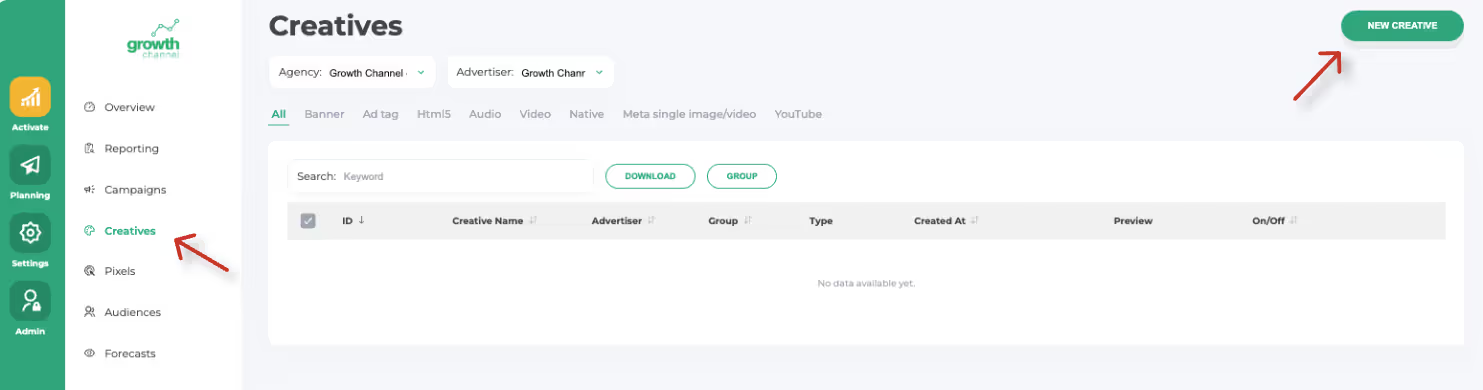
Step 1: Navigate to the Creative Section
Select “New Creative” to start
Step 2: Select which type of creative you’d like to upload
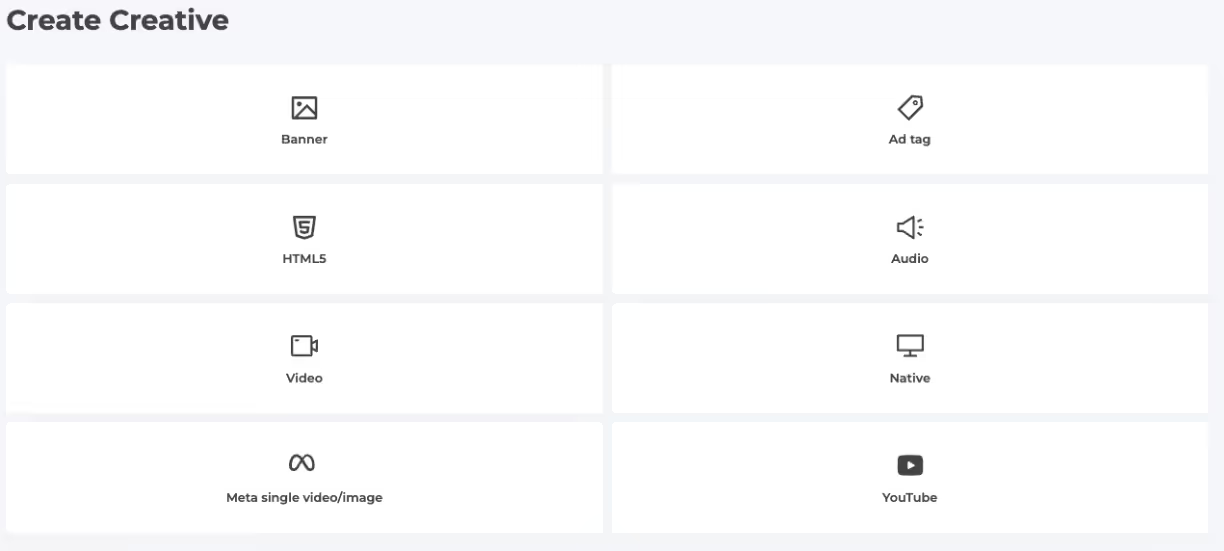
A few examples:
Banner
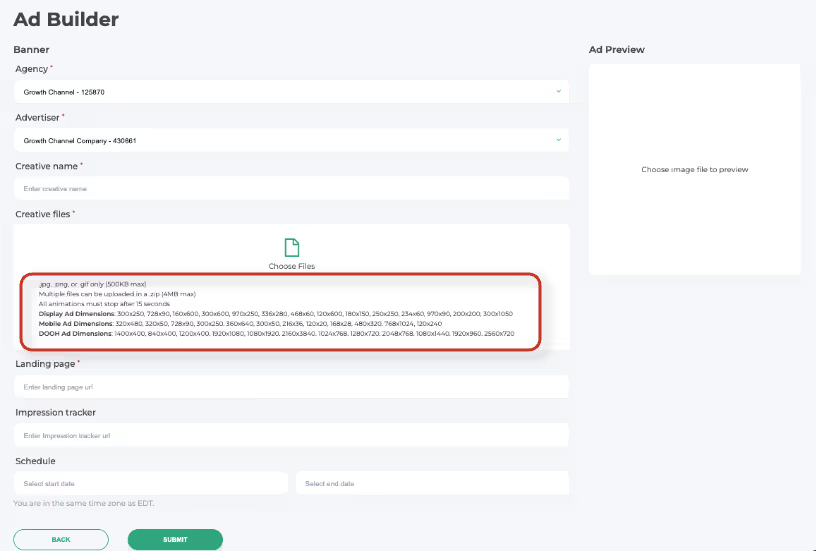
Creative Name
• Advertiser - Theme - Channel Ex. Growth Channel - Calling all Media Buyers - Display
Landing Page
• Pro tip: Add UTM parameters to your landing page URL for more accurate tracking
• Schedule. Enter creative-specific flight dates here if they differ from the overall campaign.
Once all required fields are completed, click Submit. Your banner creative is now ready for use!
Meta single video/image
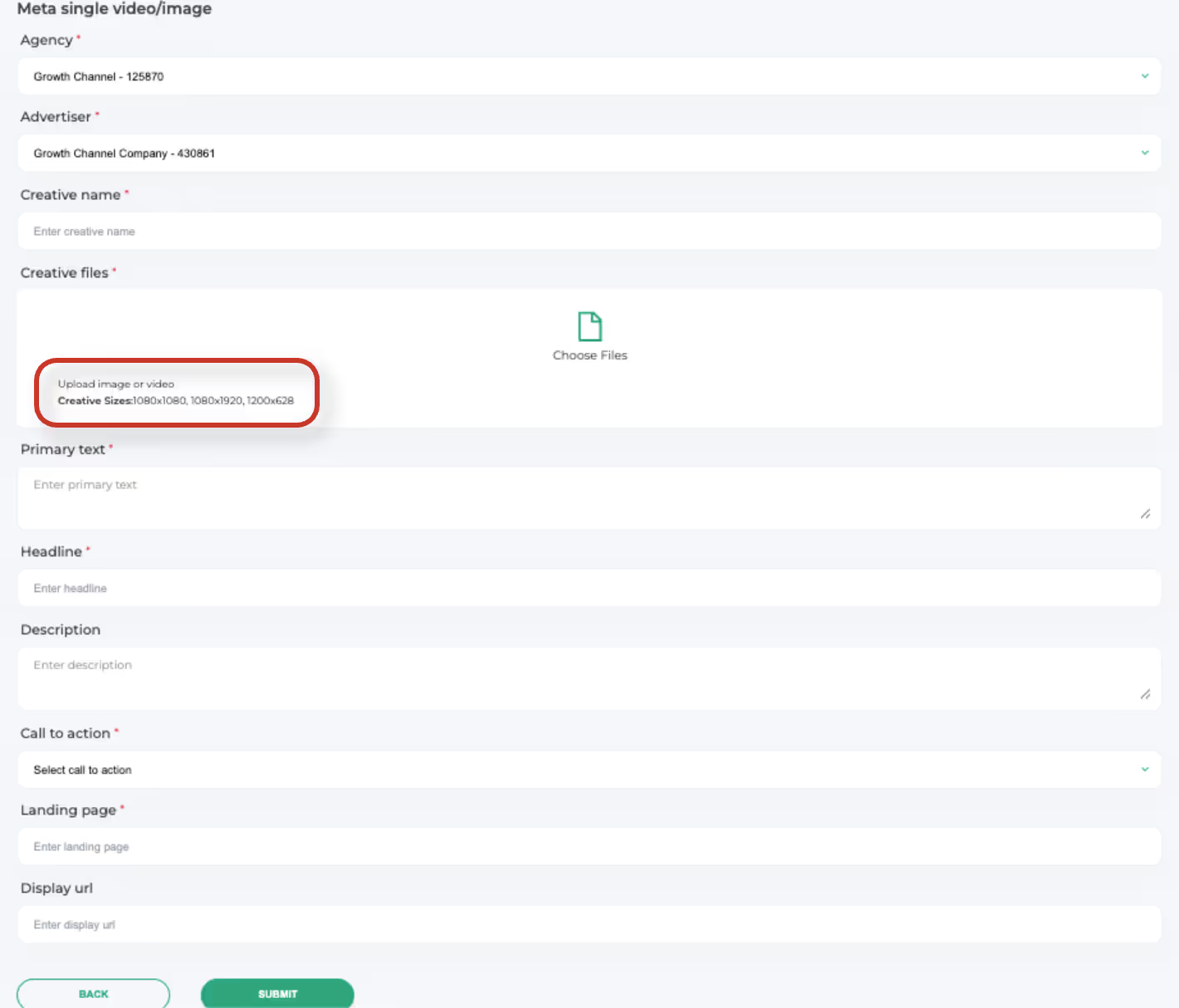
Required Fields for Meta Ads:
- Primary Text: 125 character limit
- Headline: 40 character limit
- Description : 27 character limit
- Call to Action
- Landing Page
Once all required fields are filled out, click Submit. Your Meta creative is now ready to use!
Ready to Launch Your First Campaign?
Get personalized guidance from our team to set up your campaigns for success.

Book a demo today

Still have questions?
Our support team is here to help. Reach out anytime for personalized assistance.
Contact Us