
Audiences
An audience defines who sees your ads. Growth Channel supports: CRM uploads, third-party segments, geo-fencing, lookalikes, remarketing, contextual/keyword, targeted sites, ABM, Meta interests, and custom rules.
Creating a New Audience
Step 1: Navigate to the Audience Section
Select "New Audience to start"
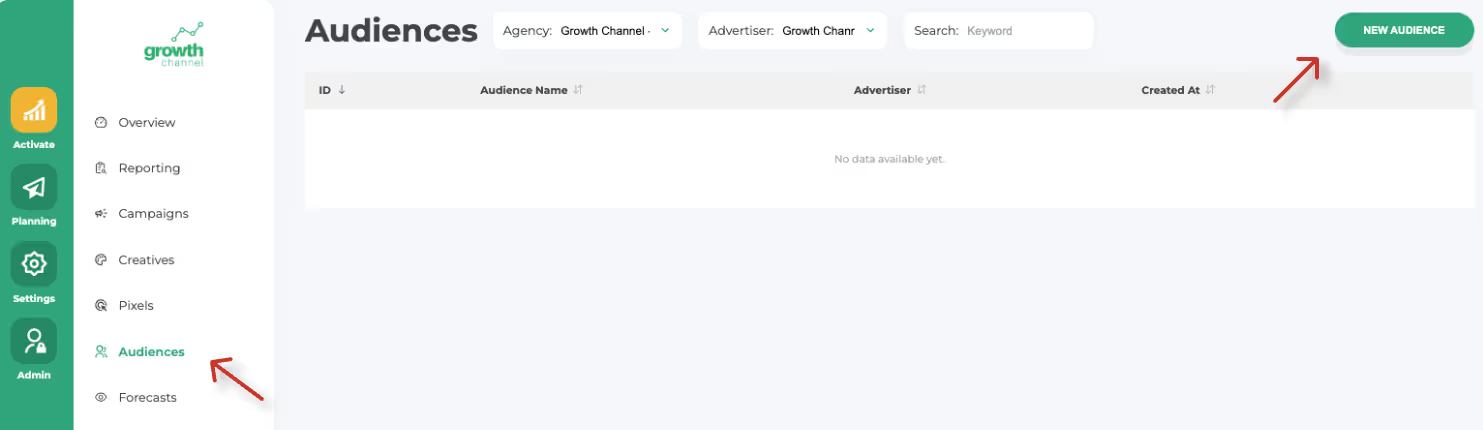
Step 2: Select type of audience to build
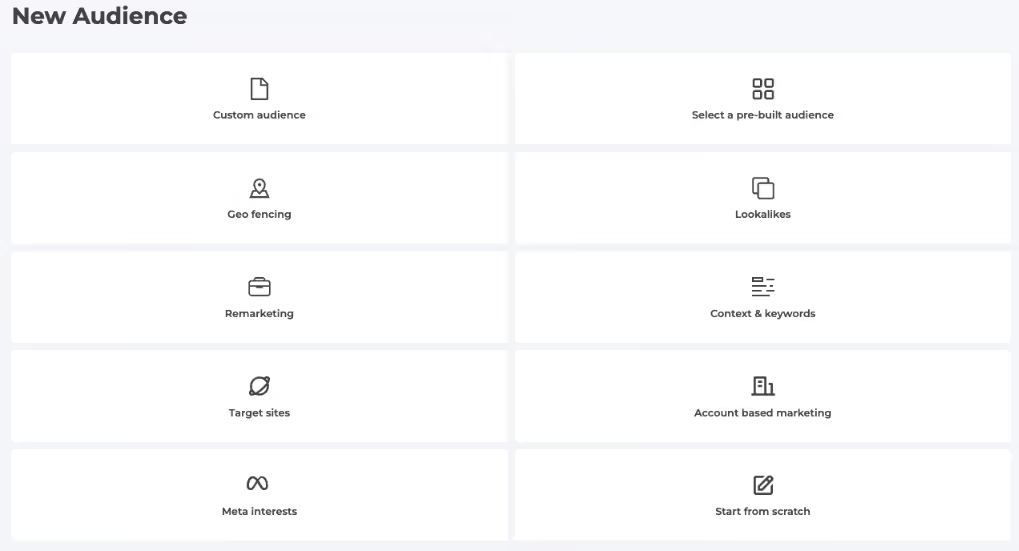
A few examples: Geo Fencing
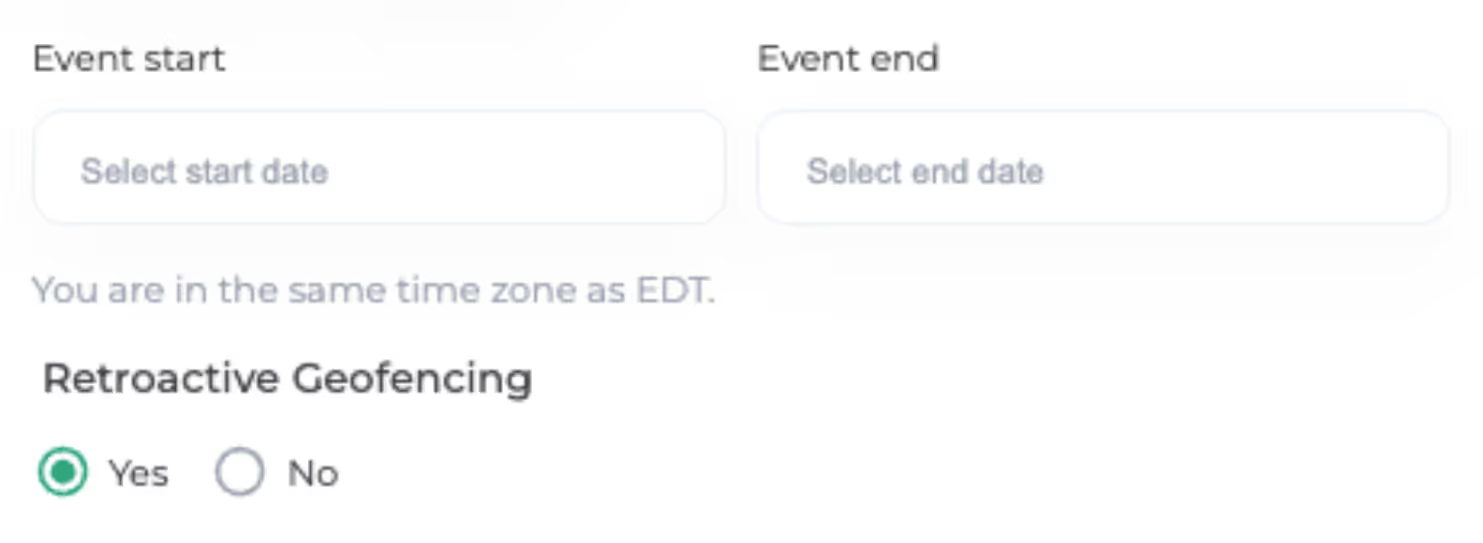
1. When building a geo-fence audience, you’ll need to select:
- Value - choose one of the following:
- Lat/Long
- Address
- Keyword
- Radius: select the target area in KM or miles
- Note the smallest area we can target is 0.25 miles
- Retroactive Geogencing?
- Decide if you want the geofence to include past dates for the selected area
2. Pre- Built Audience
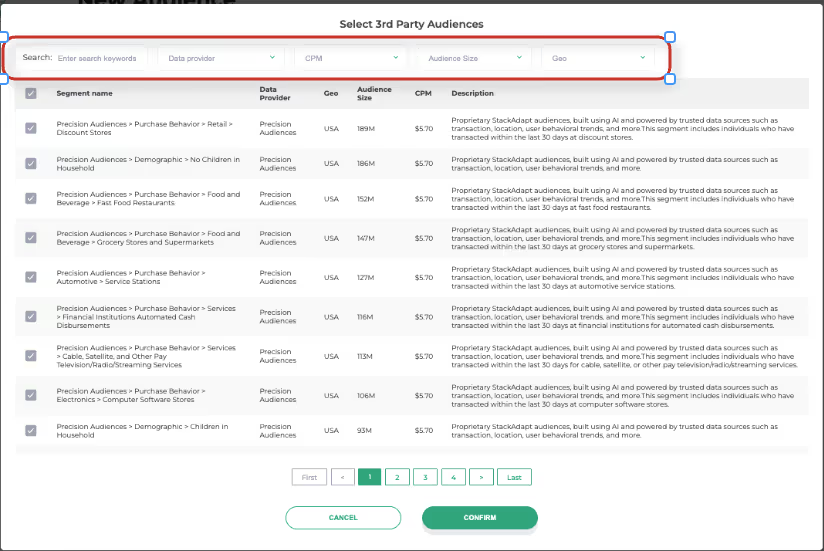
When selecting a Pre-Built 3rd Party Audience, you’ll see the following options to help you find the right segment:
- Enter Search Words: search by keywords or phrases that match your desired audience
- Data Provider: filter by one of our 100+ data providers
- CPM: view CPM cost per segment
- Audience Size: see the estimated reach of the audience
- Geo: filter by geographic location
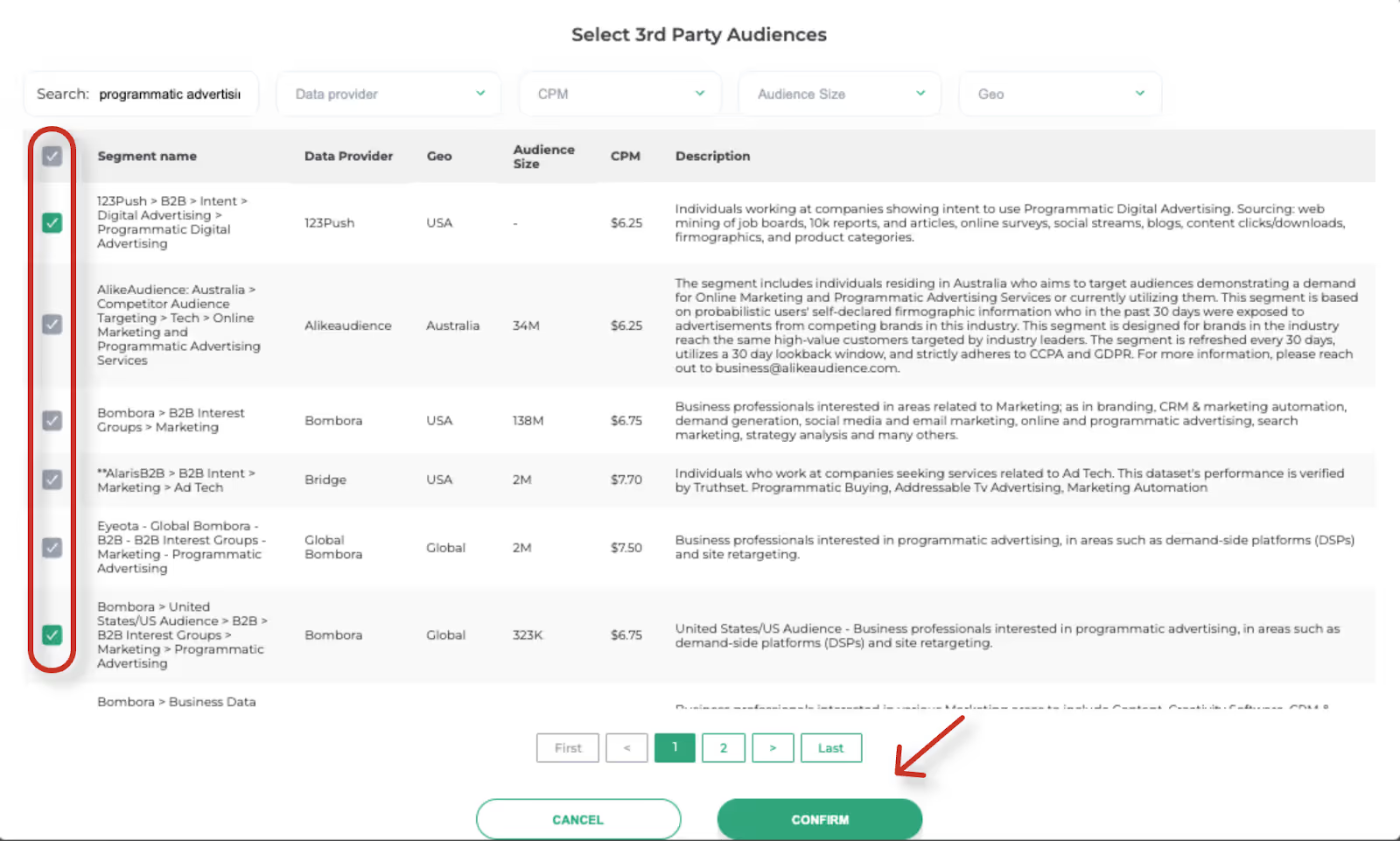
- Once you’ve found the audience(s) you want:
- Select the audience(s).
- Click the Confirm button to proceed.
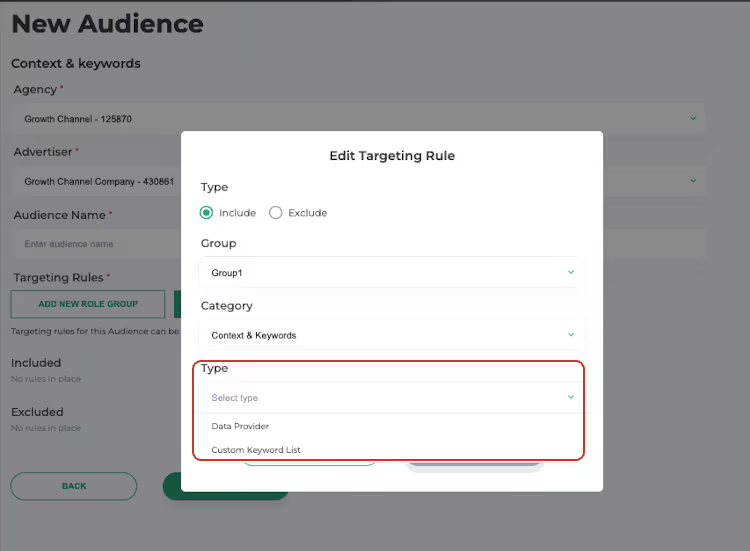
3. Context and Keywords
Context and keyword targeting lets you place ads on pages based on topics or specific words, reaching audiences in relevant content environments.
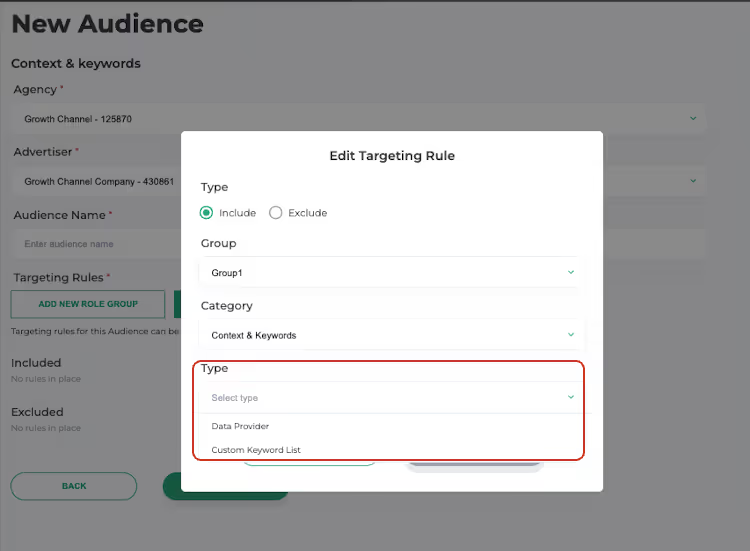
Select Type:
- Data provider. Choose specific keywords provided by data partners for targeting
- Custom Keyword List. Enter your own keywords, separated by commas
Step 3: Audience Configuration
In the Audience Builder, you can:
- Layer multiple targeting rules using AND/OR logic.
- Include or exclude specific parameters from your audience targeting.
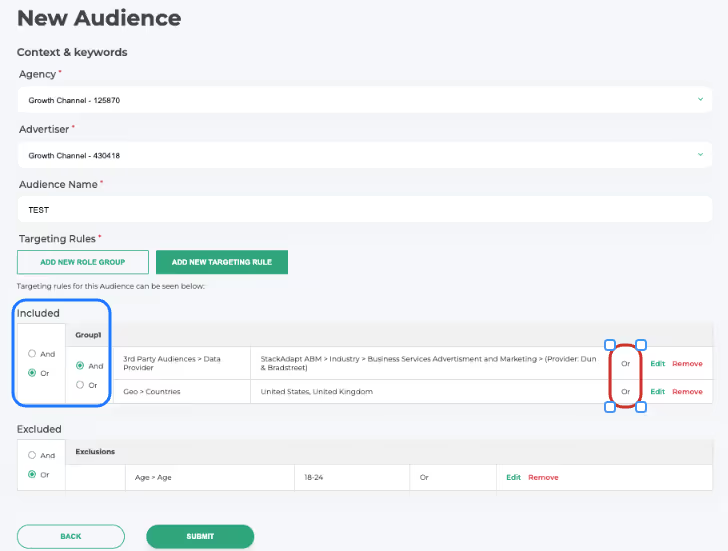
- Blue Box (AND/OR Logic): This is where you define the relationship between different rules within your audience.
- Example: We want someone who is in our 3rd Party Audience segment targeting Advertising and Marketing professionals AND is located in the United States.
- Red Highlight (Within-Line Relationship): This defines the relationship between options within a single rule.
- Example: We are targeting someone who is in either the United States OR the United Kingdom.
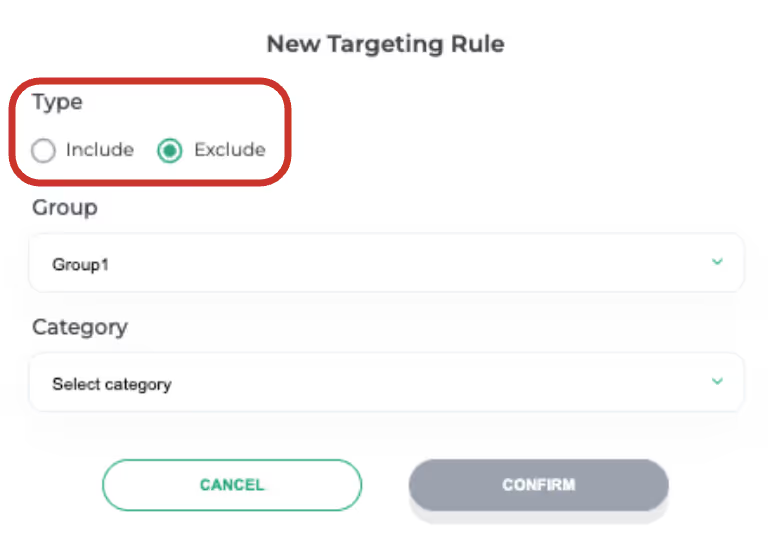
- To add an exclusion: In the Type field, select “Exclude”
Step 4: Submit Your Audience
Once your audience is configured the way you want, click “Submit”. Your audience is now ready to be used in a campaign!
Audience Types
Custom CRM
Upload customer/lead list, matched to device IDs. When you create a custom audience:
- The platform takes the data you upload (emails, IDs, or other identifiers) and generates a pixel.
- You must add this pixel to the audience targeting you’ll be using for your desired campaign.
- Any campaign using this audience will reach the users associated with the uploaded data, allowing precise, tailored targeting.
Pre-Built
Choose 3rd party audience segments from data providers, filter by geo, CPM, size.
Geo-Fencing
Target by location (radius ≥ 0.25 miles, retroactive available).
Lookalike
Expand reach with similar users.
Remarketing
Based on retargeting pixel; best practice: create for every campaign.
Contextual/Keyword
Match keywords or content themes.
Targeted Sites
Direct placements; consult Customer Success manager.
ABM
Target specific companies.
Meta Interests
For Meta campaigns.
Start From Scratch
Mix/match rules.
Configuring
- Use AND/OR logic for rules.
- Add exclusions (e.g., converters).
- Apply geo/device filters.
- Every audience must include a Geo which ensures the segment can be activated in campaigns.
- Every audience must include a Geo which ensures the segment can be activated in campaigns.
- Add custom keyword lists.
Finalizing
- Name clearly (e.g., PRO_3P_AdPros, RT_US/UK).
- Click Submit to save.
Troubleshooting
- No delivery → check geo/device scope.
- Low scale → broaden keywords or switch data providers.
- Overlap → avoid duplicating the same audience across tactics.
- Exclusions fail → confirm conversion pixels are firing.
Why This Matters
Well-structured audiences prevent waste and maximize budget efficiency.
Get personalized guidance from our team to set up your campaigns for success.


Our support team is here to help. Reach out anytime for personalized assistance.