
Creating a Pixel
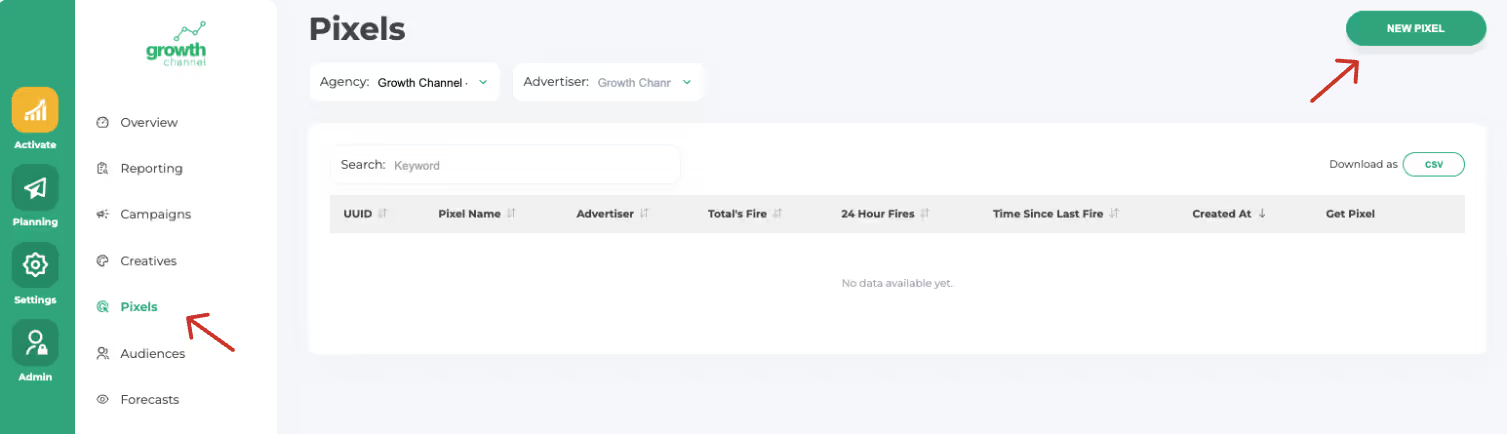
Step 1: Navigate to the pixel section
Select “New Pixel” to start
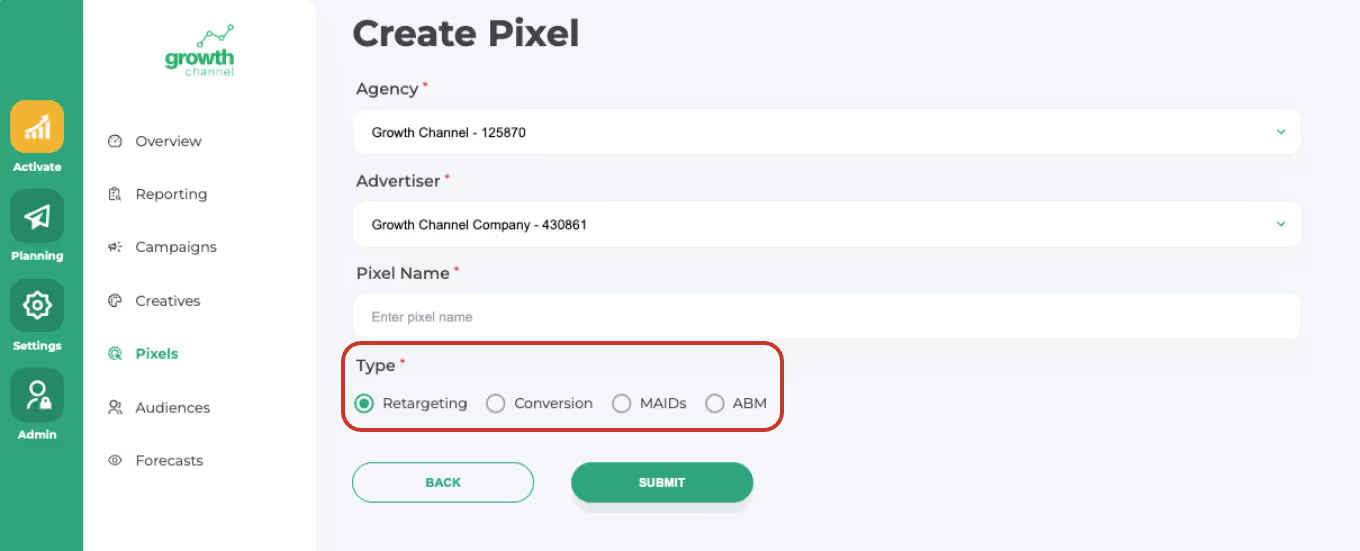
Step 2: Choose the Type of Pixel to Create
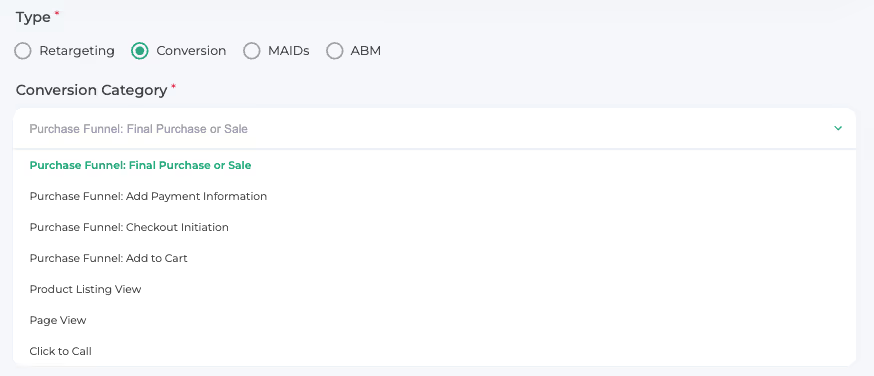
If selecting a Conversion Pixel, choose the action that will trigger it:
Step 3: Name your pixel
Best Practice: Advertiser - Pixel Type
- Example: Growth Channel Retargeting Pixel
Step 4: Place the pixel
Add the pixel to the desired page or within your GTM container
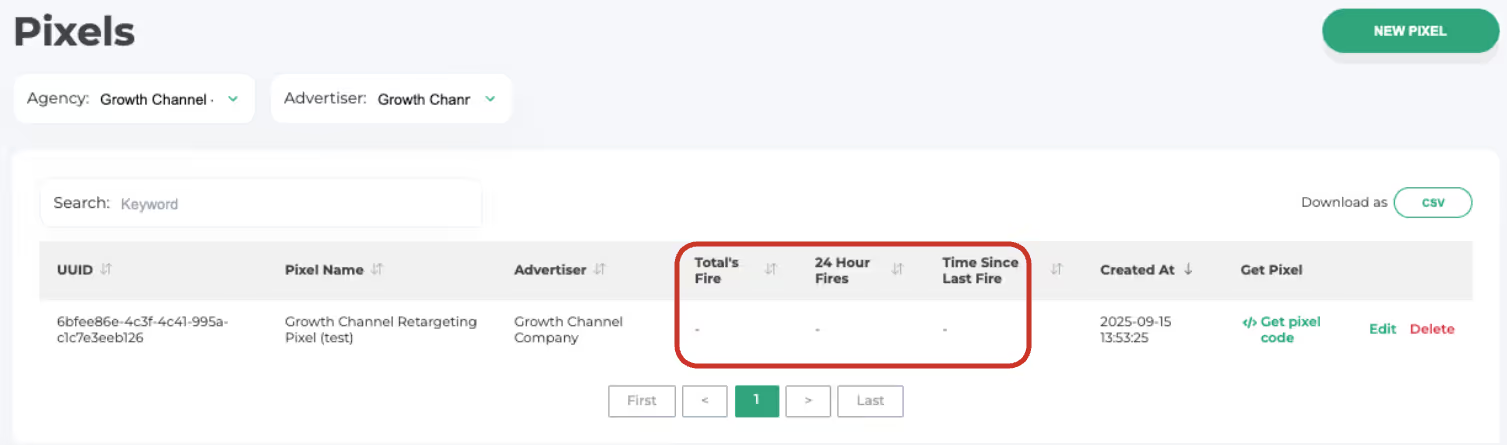
Step 5: Confirm Pixel is Firing Correctly
Verify the pixel using three metrics:
- Total Fires: total number of times the pixel has ever fired
- Fires in Last 24 Hours: number of times it fired in the past 24 hours
- Time Since Last Fire: time elapsed since the pixel last fired
Ready to Launch Your First Campaign?
Get personalized guidance from our team to set up your campaigns for success.

Book a demo today

Still have questions?
Our support team is here to help. Reach out anytime for personalized assistance.
Contact Us